
Go to the Photoshoot Page
Open the Photoshoot page from the app or website (once logged in). This is your starting point for all scene-based shoots.
iOS App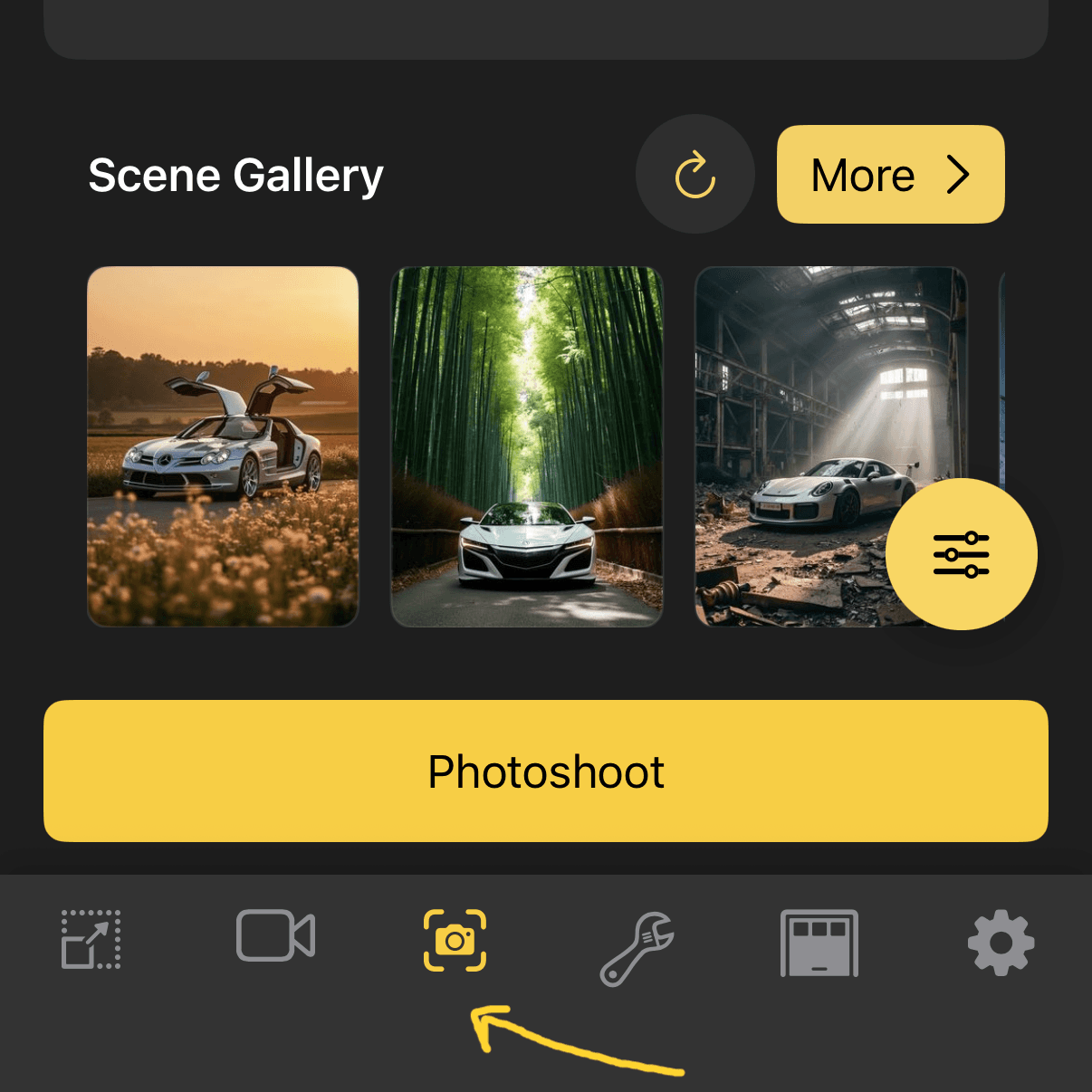
Web
Our new Valentine's Day scene templates make it effortless. Pick a scene, pick your vehicle, and photoshoot — no prompts needed.
Open the Photoshoot page from the app or website (once logged in). This is your starting point for all scene-based shoots.
Tap or click on the Scene Gallery to browse all available scene templates. You'll find curated collections for every occasion.
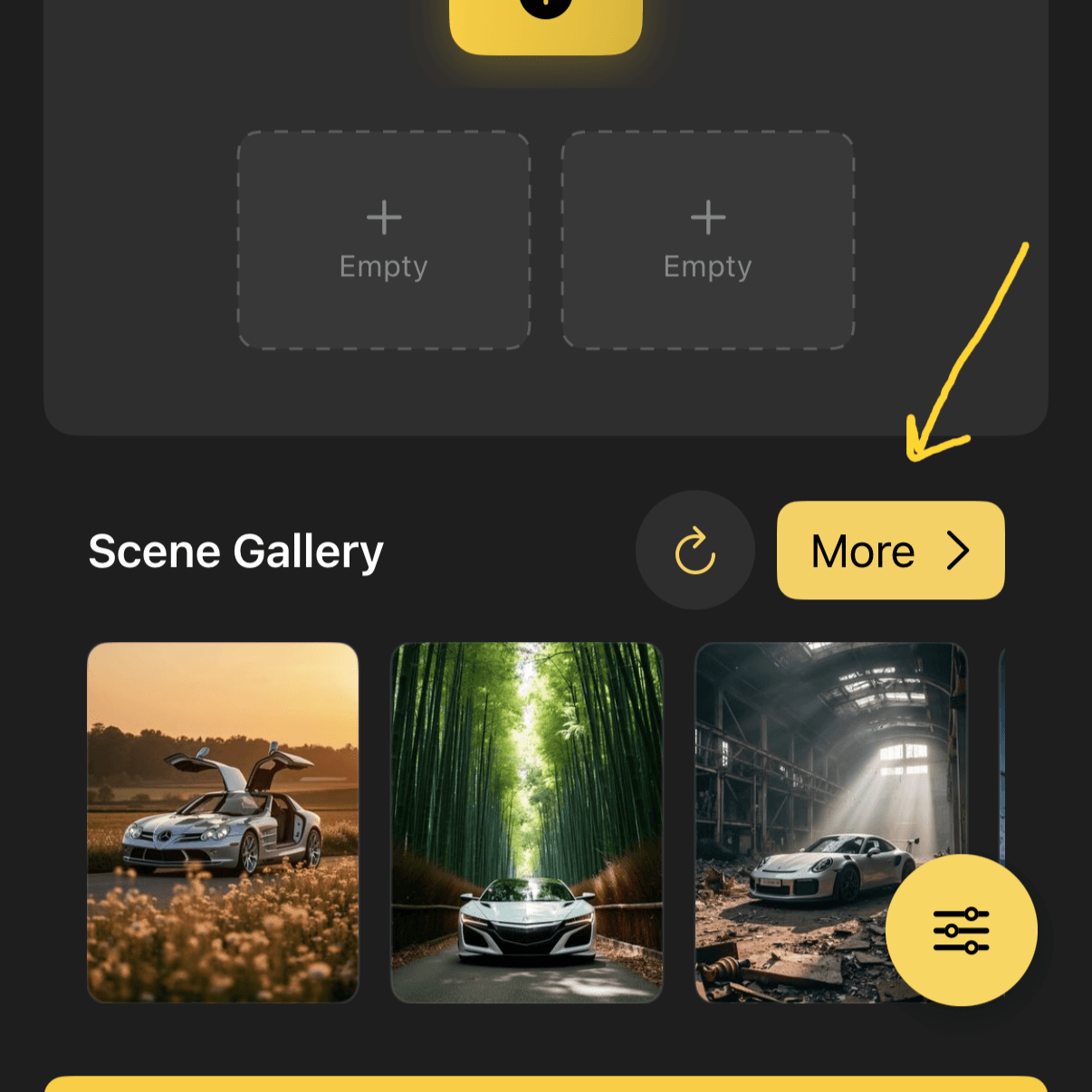
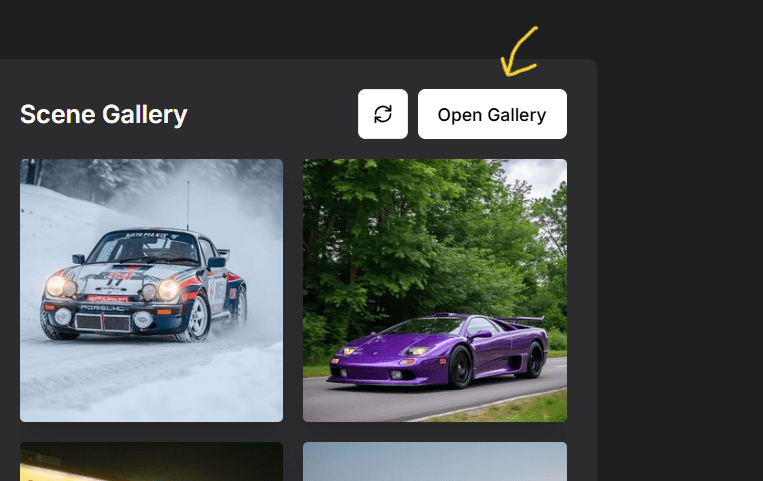
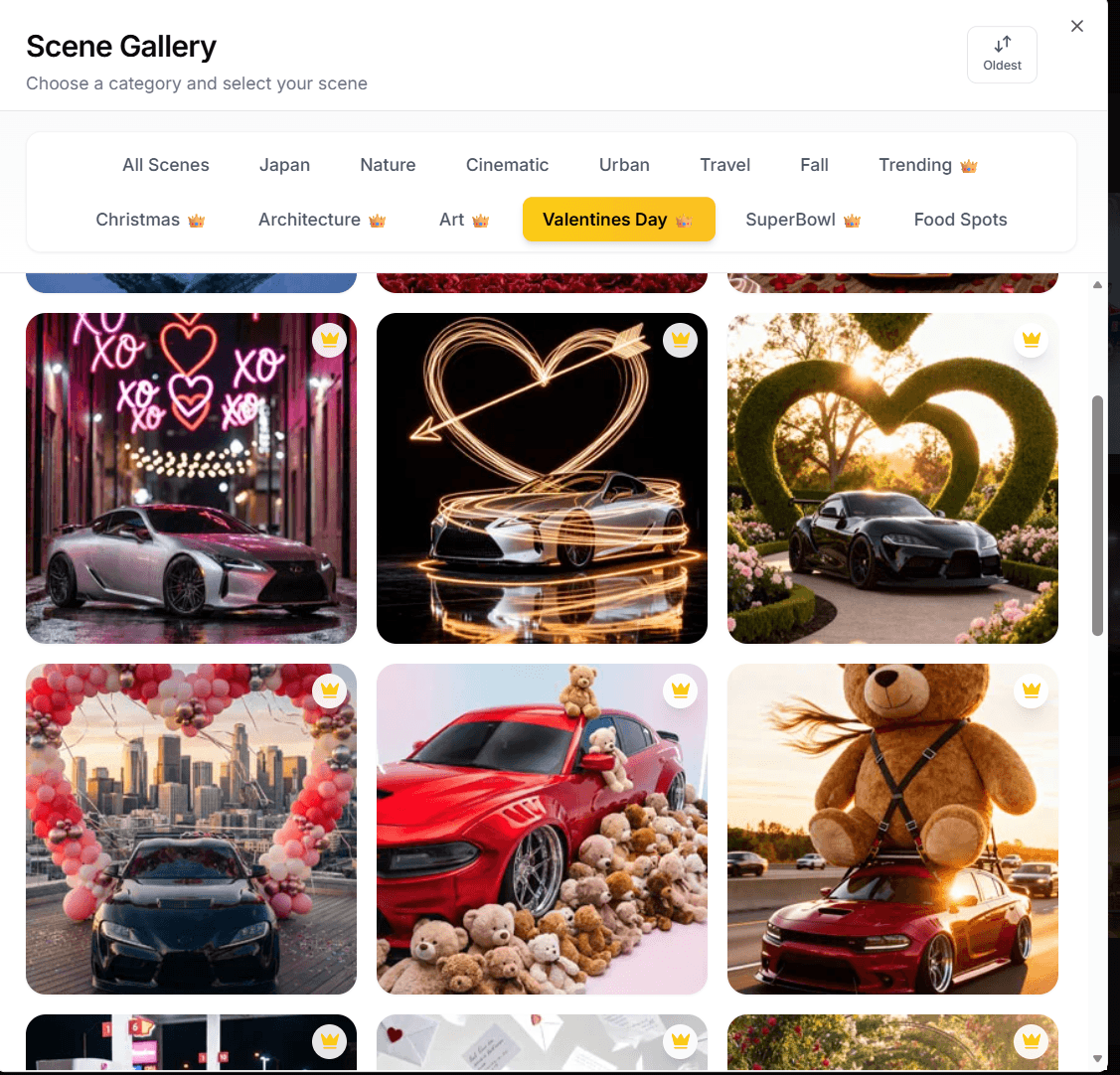
Navigate to the Valentine's Day section inside the gallery. All our romantic, holiday-themed scenes live here — roses, hearts, candlelit settings, and more.
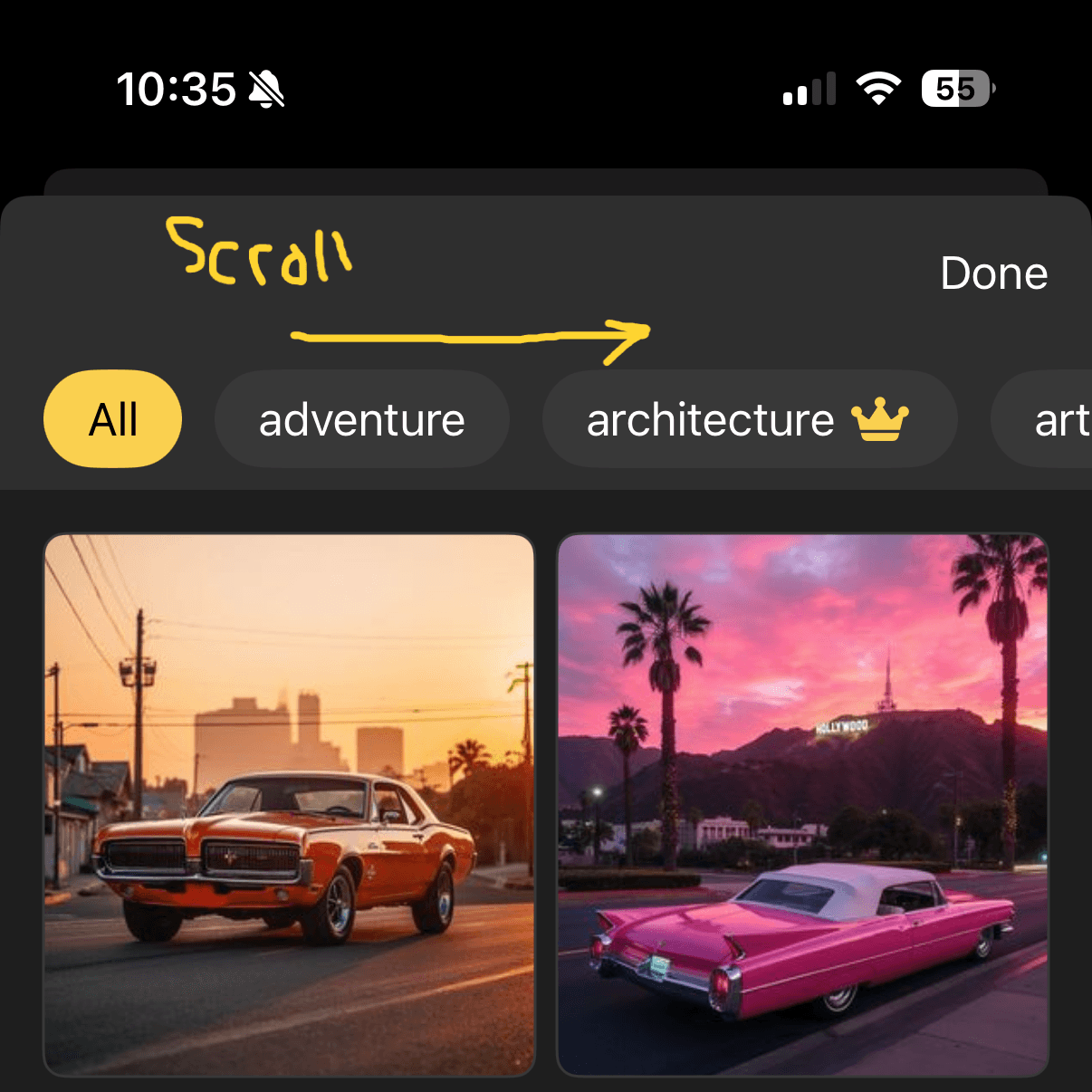
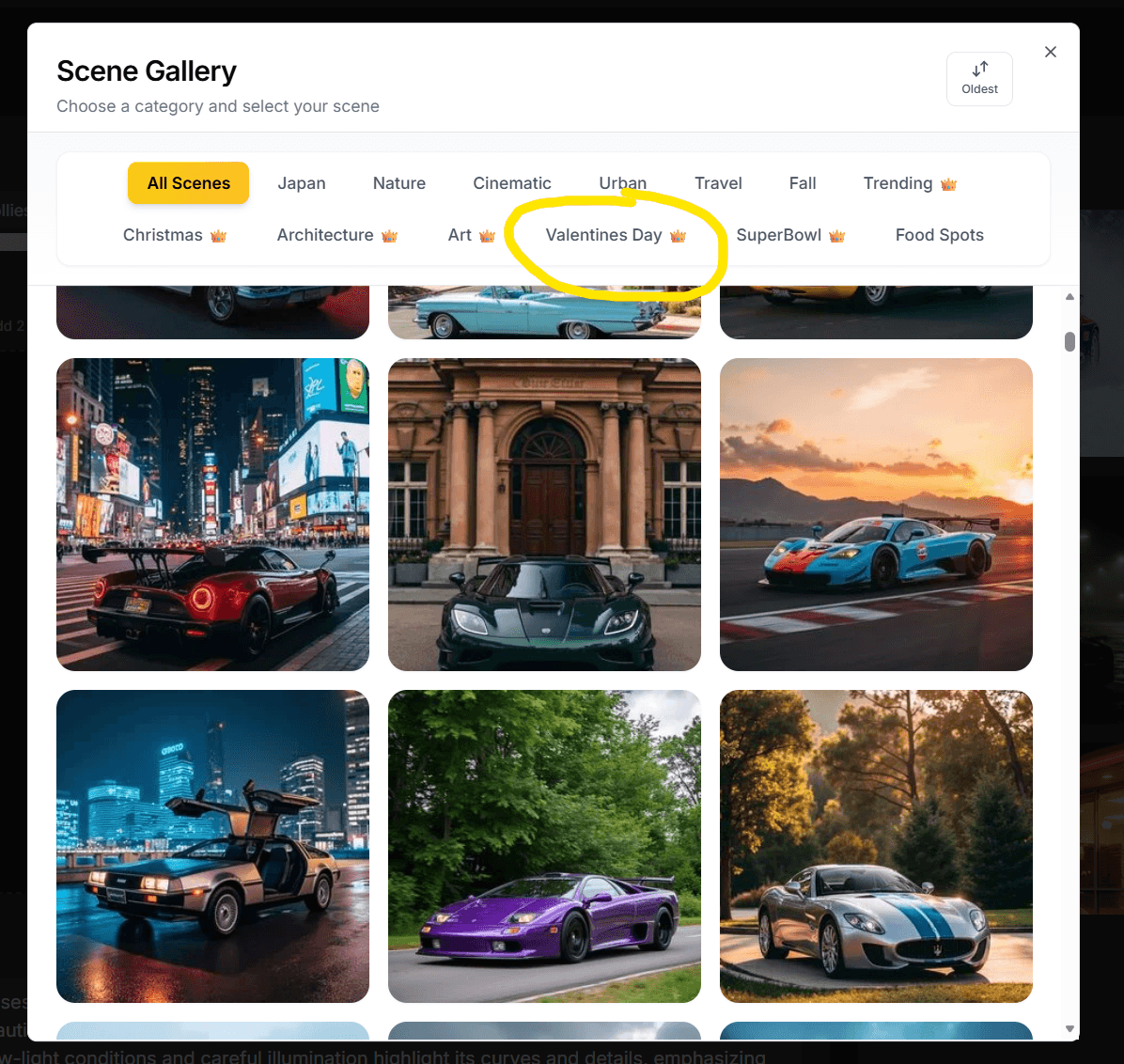
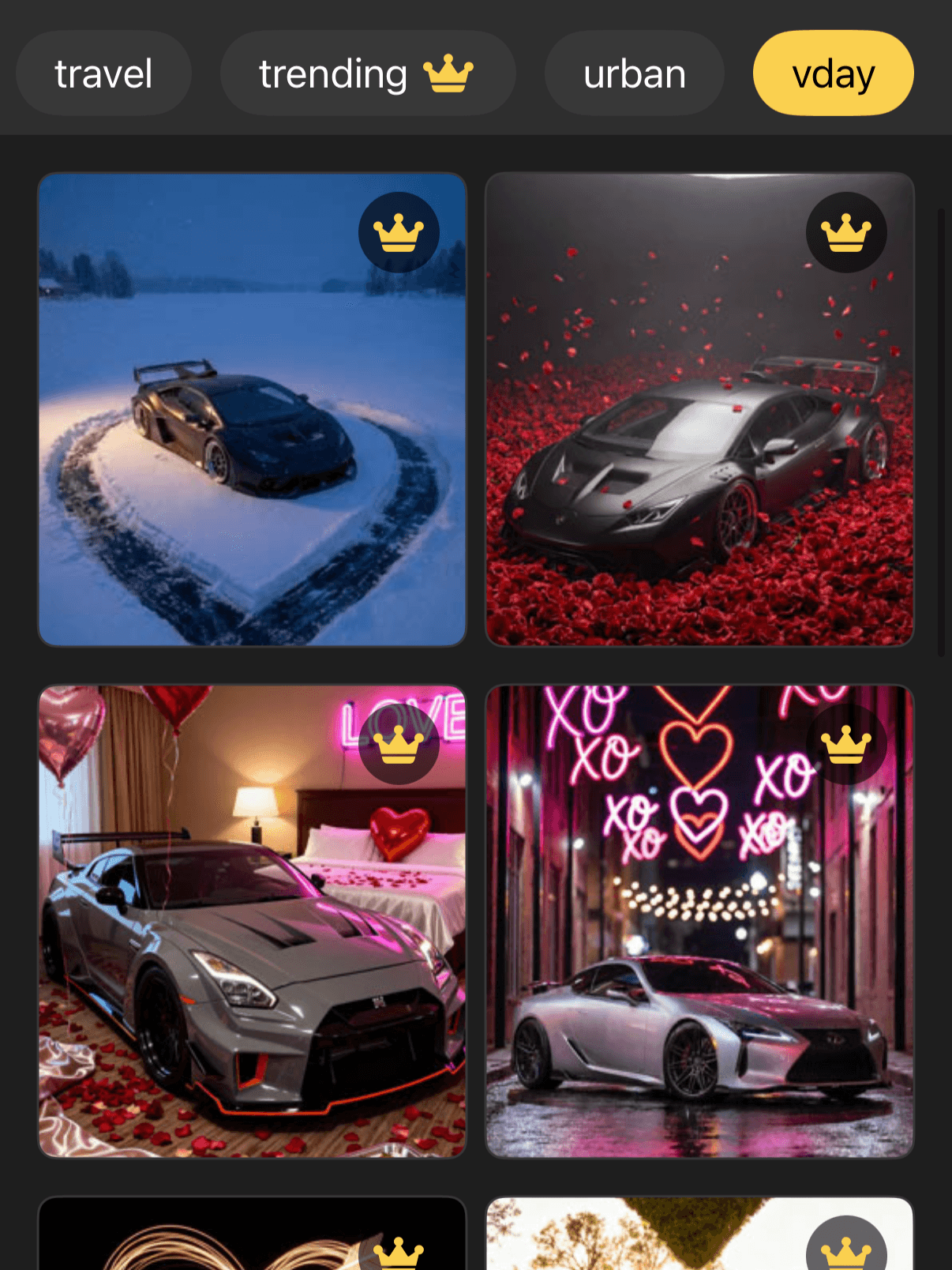
Browse the Valentine's Day scenes and tap the one you love. Each scene is a fully crafted template — no prompt writing required.
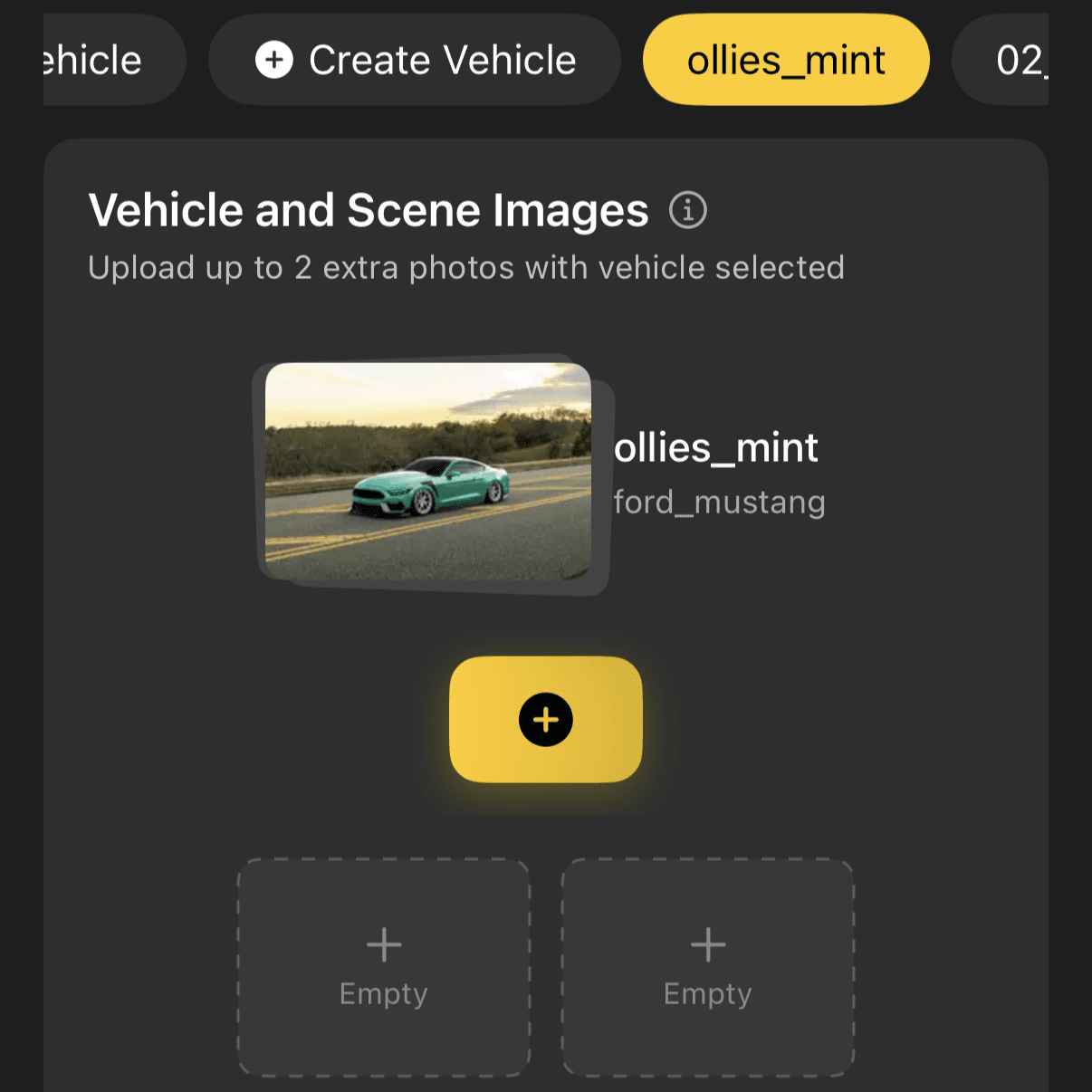
Choose the vehicle you want featured in the scene. Pick from your garage or upload a new one.
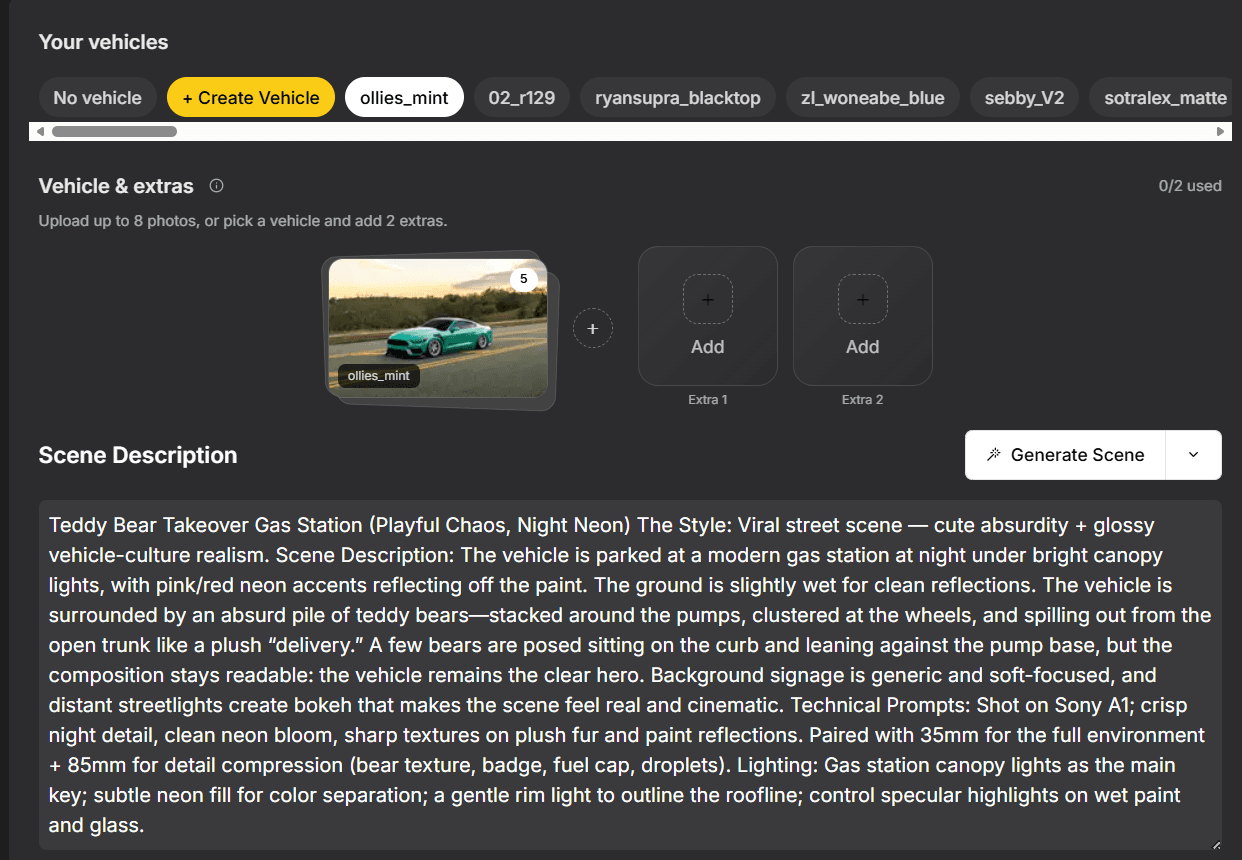
Hit Photoshoot and watch the magic happen. Your vehicle gets placed into a beautiful Valentine's Day scene — ready to share, post, or save.
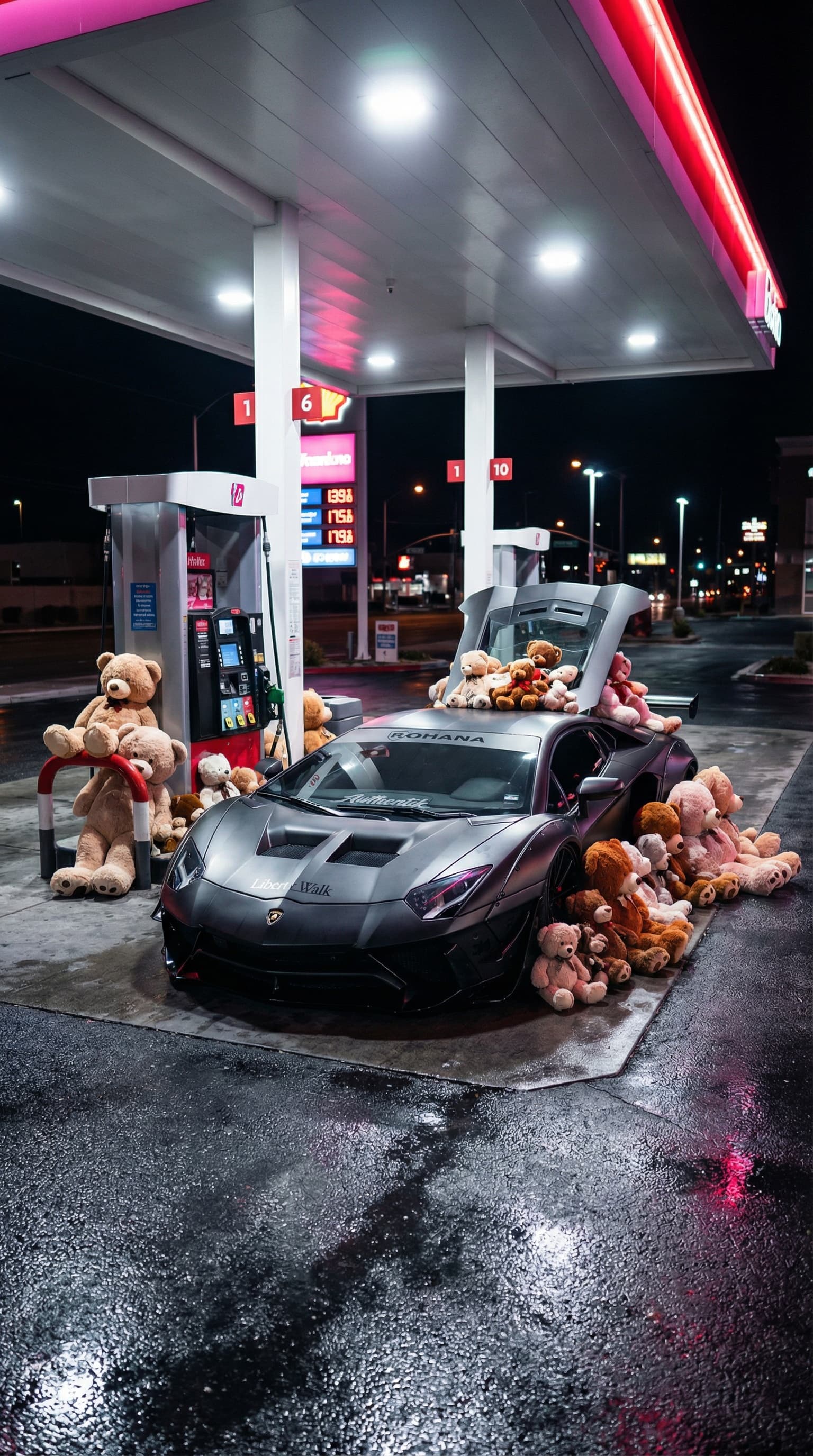
No prompts to write, no settings to tweak. Just pick a scene and photoshoot.
Explore other ways to create with Rollers.